WordPress Website Maintenance Checklist: A Complete Guide


Your WordPress website may look perfectly fine on the outside while silently developing problems behind the scenes.
Shocked? An outdated plugin, failed backup, broken form, expired SSL certificate, or unnoticed security vulnerability can turn a fully functional website into a serious business problem. And the frustrating part? You may not notice anything is wrong until your visitors do.
That’s why launching a WordPress website isn’t the finish line. Regular maintenance keeps your website secure, functional, fast, and ready to serve your customers.
But what exactly should you check, and how often?
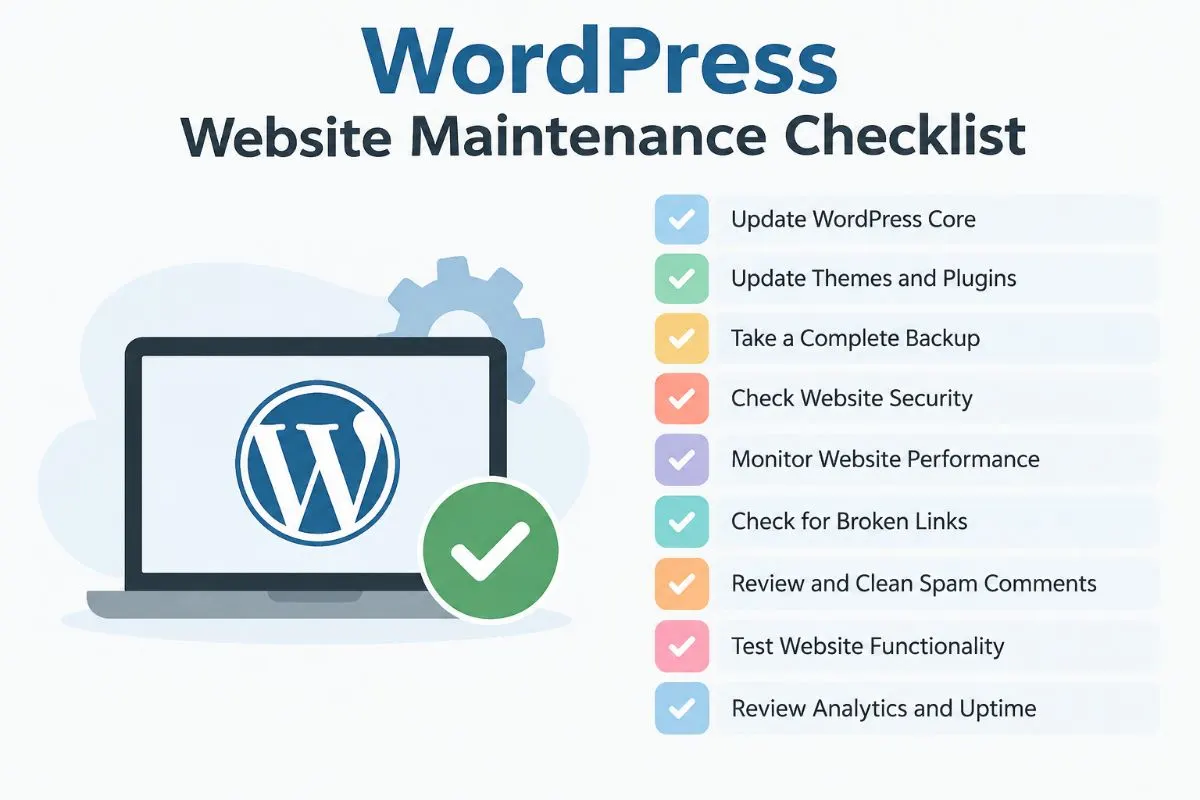
This WordPress website maintenance checklist covers the essential tasks you need to stay on top of, from WordPress updates and security checks to backups, performance, SEO, forms, content, and hosting.
Table Of Contents
| 1. | Introduction |
| 2. | Why Is WordPress Website Maintenance Important? |
| 3. | WordPress Website Maintenance Checklist |
| 4. | WordPress Maintenance Checklist At A Glance |
| 5. | How Often Should You Perform WordPress Maintenance? |
| 6. | FAQ |
| 7. | Conclusion |
| 8. | Keep Your WordPress Website Running Without the Maintenance Hassle |
Why Is WordPress Website Maintenance Important?
Many of the times, we think that creating websites is everything. But as said, we need to follow a website maintenance for new updates and keeping our website secure from malware.
When you ignore this maintenance, you can unknowingly call security risks for your web page. It is essentially important because:
- Outdated software usually calls upon viruses and threats, which risks your webpage getting hacked.
- Your website performance also drops low as the loading speed decreases with older versions.
- Many plugins may be broken over time, and it leads users to wrong functionalities, resulting in poor user experience
- Backups should be performed before updates and as part of an overall maintenance strategy
- Search engines are evolving the way your web page gets explored every now and then. Outdated software, broken functionality, technical issues, or neglected SEO can negatively affect website performance and search visibility.
So, what exactly should be checked in your WordPress website to keep it in the loop? Let’s find out in the next section.
WordPress Website Maintenance Checklist
Here are some essential WordPress website maintenance checklists that you can follow to keep your website running at its best while staying updated and secure from risks.
WordPress Core, Theme, and Plugins Update
This is the very first and fundamental part of your website maintenance, as these are part of WordPress core updates. Start with checking the themes and plugins that you have used for your website.
If they have any update available, do it. But do not click on the update button immediately. Some updates may delete some necessary data without notice.
So, make sure your data is all backed up before you hit the update button. Also check the compatibility of the version that you update to. Updates prevent security issues and compatibility problems.
Verify Your Website Backup
Your website will lose all of its value if backup is an option on your website. Data on your website is the most crucial factor, so losing it means losing your entire website.
To ensure that it does not happen, you can enable some automated backup for your website. While doing this, you should also be aware of where your data is being saved. Your website files and database should stay in a secure backup storage.
I also recommend occasional testing to ensure the backups are running smoothly, as this is an important required property as a WordPress website maintenance checklist. Your backup strategy should not only focus on creating copies but also ensure your website can actually be restored when required.
Run Regular WordPress Security Checks
WordPress security is as important as the security measurements in any custom website development. To make sure your website is not in the eye of maleware, run regular security checks on your website.
| Before updating | After updating |
|---|---|
| Create/verify a recent backup. | Check the homepage. Test forms. |
| Check the changelog when appropriate. | Test important integrations. |
| Confirm compatibility. | Check menus/navigation. |
| Test major changes in staging where possible. | Check checkout/login functionality where applicable. |
| Review error logs if necessary. |
The administrator credentials should be strong so that they cannot be authorized easily even if hackers invade some security checks. Enable two-step verification if possible.
At the same time, sometimes, unused accounts that you do not need anymore also can sometimes invite hazards for the website. So, removing them may be considered the safest choice for your website maintenance.
Check Website Speed and Performance
How your website performs is also determined by how you add new plugins, functions, scripts, media files, content, etc., over time. Page loading speed and performance significantly decline when they are added.
So, constantly check your web page loading speed on both desktop and mobile, optimize the large images, and verify that caching is working correctly and clear or rebuild caches when necessary. For example, after significant content, configuration, or asset changes.
Here is a checklist for you:
- Check Core Web Vitals
- Test mobile and desktop performance
- Review large images
- Remove unused plugins
- Check third-party scripts
- Review caching
- Check database size
- Test important pages after major updates
Reviewing unnecessary plugins and cleaning up your WordPress database can also help prevent avoidable slowdowns and maintain a smooth user experience.
Test Important Functionality
Just as mentioned previously, you need to make sure that the important functionalities of your website that communicate with users, such as contact forms, lead generation forms, email notifications, CTA buttons, and login functionalities, are all working properly.
Your website’s maintenance also includes properties that determine your user experience. If those communication functions don’t work properly, your website may be technically online while your important business functions are broken.
Review SEO, Content, and Analytics
This is one of the most underdiscussed WordPress website maintenance checklist topics. When we talk about websites, we lean more towards the technical parts. But the non-technical parts, like content and on-page search engine optimizations, get ignored.
If your website is working perfectly but has no visibility, it’s the same as screaming in an empty room. You need visitors on your website, who may eventually convert into subscribers or customers.
That is why you should always ensure the best practice for SEO and the kind of content that your website publishes. The checking does not end there. After you have published content and ensured SEO for your web pages, it is time to check the analytics.
Monitor what is working, what is bringing traffic, and what is doing the most conversion, simultaneously checking what is not working. Prepare an audit and make changes accordingly.
WordPress Maintenance Checklist At A Glance
| Task | Weekly | Monthly | Quarterly |
|---|---|---|---|
| Backup verification | ✓ | ||
| Security checks | ✓ | ||
| Plugin/theme review | ✓ | ||
| Forms & functionality | ✓ | ||
| Performance | ✓ | ||
| Broken links | ✓ | ||
| SEO review | ✓ | ||
| Analytics review | ✓ | ||
| Full technical audit | ✓ |
How Often Should You Perform WordPress Maintenance?
This may sound confusing at first when you try to follow maintenance for everything and end up feeling lost. For that reason, I have prepared a checklist for you to keep beside you when you are planning to start your website maintenance.
| Frequency | What to review |
|---|---|
| Weekly | Backups, uptime, security alerts, critical updates |
| Monthly | Forms, links, performance, plugins, database |
| Quarterly | SEO, content, analytics, user roles, integrations |
| Periodically | Hosting, domain, SSL, full technical audit |
Not every task requires manual attention every day. Some activities can be automated, while others require human review. The exact maintenance schedule will depend on how frequently your website changes and how critical it is to business operations.
FAQ:
Yes, you can handle basic maintenance tasks yourself, such as updating plugins, checking backups, and reviewing website functionality. However, complex websites may require professional technical support.
Ignoring maintenance can lead to security vulnerabilities, slow performance, broken functionality, data loss, and compatibility issues between WordPress, themes, and plugins.
Not always. Before installing updates, create a complete backup and check whether the latest version is compatible with your existing WordPress version and other website components.
Slow-loading pages, broken forms, outdated plugins, security warnings, frequent errors, or declining website performance are common signs that your website needs attention.
Yes. Regardless of website size, regular maintenance helps protect business data, maintain functionality, improve security, and ensure visitors have a smooth experience.
Conclusion
WordPress website maintenance is not a one-time task but an ongoing process. From updating plugins and securing your website to checking backups, performance, functionality, SEO, and analytics, every small check contributes to keeping your website reliable.
The key is to follow a structured maintenance schedule instead of waiting for something to break. By regularly reviewing the areas covered in this checklist, you can identify potential issues early and keep your WordPress website secure, fast, and ready to support your business as it grows.
Keep Your WordPress Website Running Without the Maintenance Hassle
Managing updates, backups, security checks, and performance monitoring can quickly become time-consuming, especially when you are focused on running your business.
A structured WordPress maintenance plan can help you stay ahead of potential issues while keeping your website secure, updated, and running smoothly.
Request a maintenance plan today and give your website the consistent attention it needs.